 AllMacWorld MAC Apps One Click Away
Download FileJoy Smart Assistant 2.0.1 for Mac free latest full version standalone setup. FileJoy Smart Assistant 2026 for MacOS is a utility that expands Finder’s capabilities by integrating AI-powered tools directly into familiar workflows. The app is marketed as a “smart assistant” for working with files, helping automate routine tasks without switching between programs.
FileJoy Smart Assistant 2026 for Mac Review
FileJoy Smart Assistant is a Mac app made for people who work with a lot of files. It adds more file tools to Finder, so you can do many common tasks without opening several different apps. You can rename files, organize folders, convert images, work with PDFs, extract text from images, remove file information, clean up folders, and handle other file tasks from the same place. You can also download Filepane for MacOS
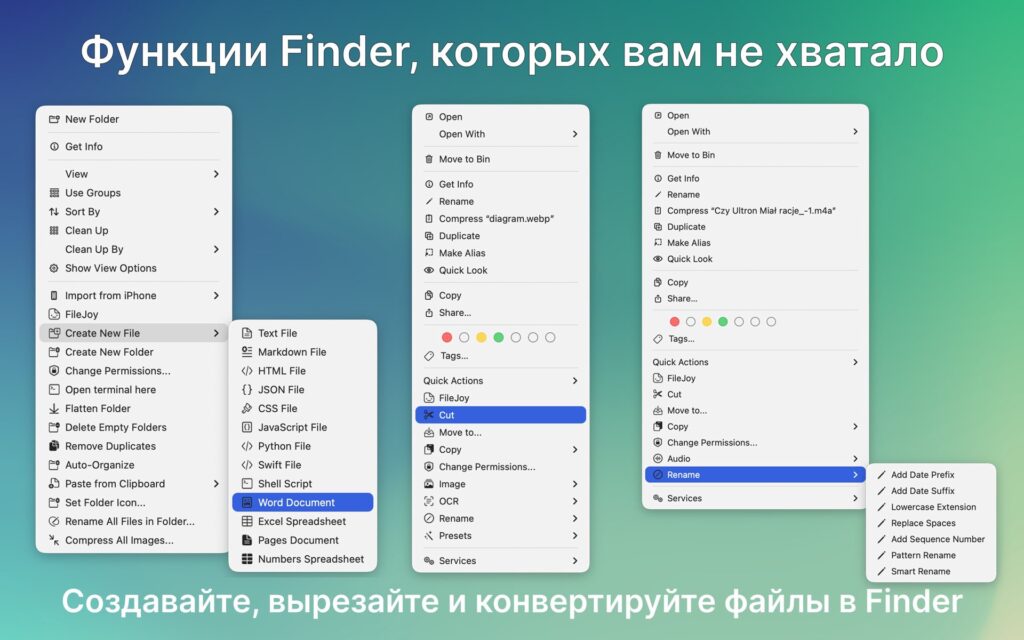
The main idea is simple. Instead of using one app for renaming, another for image conversion, another for PDFs, and another for file cleanup, FileJoy puts many of these tools together. This can save time if you work with files every day. FileJoy works with Finder rather than trying to replace it. You can select a file or folder in Finder and access FileJoy tools from the right-click menu.
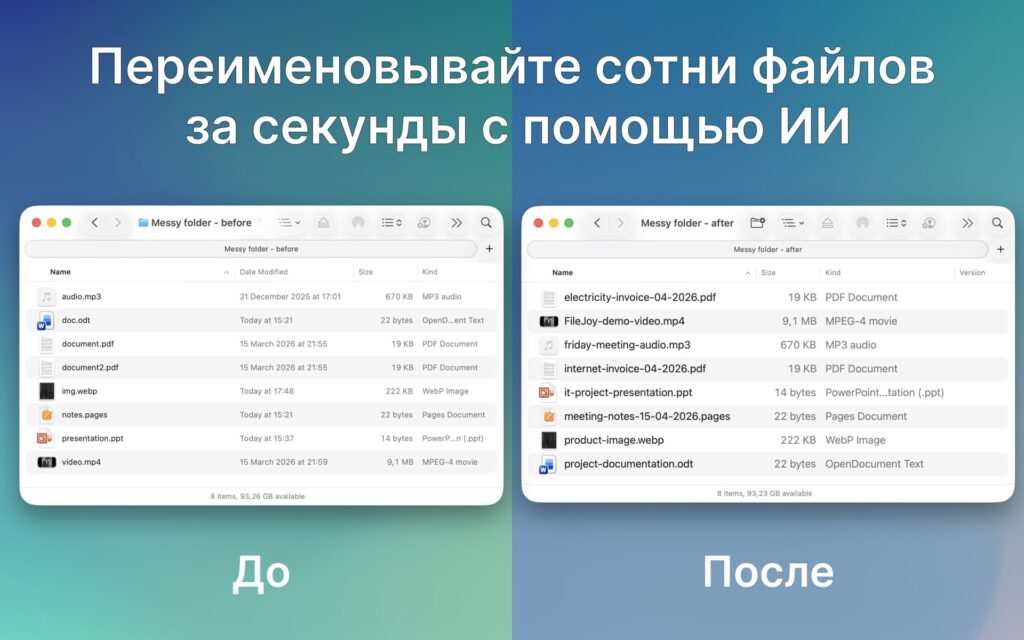
This makes the app easy to understand because you can continue using Finder in the normal way. One of the most useful features is Smart Rename. Normal file-renaming tools usually let you change names using numbers, words, dates, or other rules. FileJoy can also suggest names based on the information inside a file.
For example, a folder may contain files named:
IMG_4821.jpg
IMG_4822.jpg
IMG_4823.jpg
These names don’t tell you much about the pictures. FileJoy can look at the available information and suggest names that are easier to understand. This can be useful for photos, screenshots, documents, scanned files, and downloaded files. You should still check the suggested names before applying them. A computer can sometimes misunderstand what a file contains.
FileJoy also includes Smart Search. This is useful when you remember what is inside a file but don’t remember its exact name. For example, you may remember having a PDF about a particular project. You may not remember whether you called it “project-notes.pdf”, “meeting.pdf”, or something else.
FileJoy can use information from the file, including text found through OCR, to help locate it. This can be helpful when you have hundreds or thousands of documents. Another useful feature is Auto-Organize. It can help arrange files into folders based on their information. This is useful for messy Downloads folders, Desktop files, project files, photos, documents, and research material.
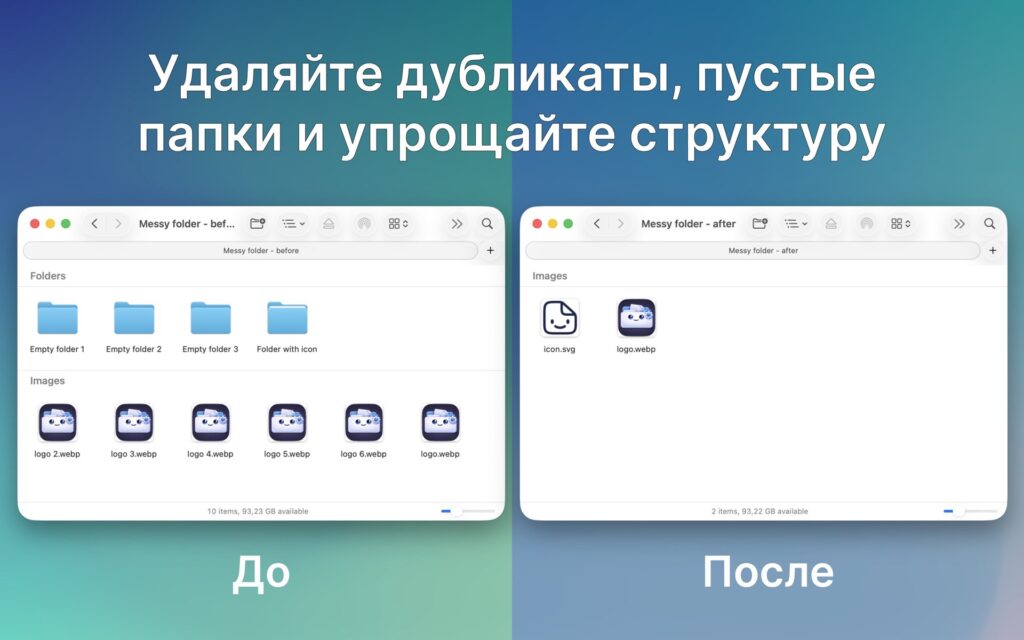
However, you should be careful when automatically moving large numbers of files. A folder structure can have meaning that isn’t obvious from the filenames. For important files, make a backup first and review what FileJoy wants to change.
FileJoy also focuses on keeping your files private. The developer says that its local file-processing features can work on your Mac without sending files to a remote server. This can be useful when working with private documents, business files, personal photos, financial records, or other sensitive information.
Still, users should check the current privacy information before using any app with highly sensitive data. Different features can work in different ways. FileJoy isn’t only about file organization. It also includes several tools for working with images.
You can convert common image formats such as JPG, PNG, HEIC, and WebP. You can also compress images, change their size, add watermarks, and remove extra information stored inside image files. These tools are useful for simple tasks. For example, if you have 50 HEIC photos and need JPG versions, you don’t have to open an image editor and process each file separately.
FileJoy also includes PDF tools. You can merge PDFs, split them, compress them, and convert images into PDF files. Its text extraction feature can also read text from images and scanned documents.
This is useful when you have a scanned document and need to copy some of the text from it. FileJoy also supports several basic audio and video tasks. You can convert audio files, extract audio from videos, convert videos to MP3, and create GIFs from videos.
These tools are useful for quick jobs. They are not meant to replace professional video or audio editing programs. The same idea applies to the image tools. FileJoy is designed for quick file tasks rather than professional editing.
File cleanup is another part of the app. It can help find duplicate files, remove empty folders, flatten folders, and rename groups of files. Duplicate-file cleanup can be useful when your Downloads or project folders contain many copies of the same files.
You should check the results before deleting anything important. Two files can look similar but still be needed for different reasons. FileJoy also includes tools that can be useful for developers and advanced Mac users. These include copying file paths, changing file permissions, and opening Terminal, iTerm2, or Warp from a file’s location.
For someone who regularly works between Finder and Terminal, this can remove a few unnecessary steps. The app is also useful for creating files from templates. This can save time if you regularly create the same type of document or file.
If you need to connect to a remote server, upload files, download files, or manage an FTP or SFTP account, a dedicated file-transfer app is a better choice. FileJoy is mainly focused on files stored on your Mac and tasks performed through Finder.
This makes it different from apps such as Transmit, ForkLift, and Commander One, which put more emphasis on remote servers and advanced file transfers. FileJoy also isn’t designed to replace professional programs such as Photoshop, Final Cut Pro, or advanced audio editors.
Its strength is handling the smaller jobs that often require opening another program. Overall, FileJoy is most useful for people who want more from Finder without learning a completely different file manager. It brings many small tasks into one place. That is its main advantage.
Features of FileJoy Smart Assistant for Mac
- Smart file renaming
- File search based on file information
- Automatic file organization
- Batch file renaming
- Duplicate file cleanup
- Empty folder removal
- Folder flattening
- File and folder permissions
- Copy file paths
- Create files from templates
- Batch file creation
- Custom file templates
- Image conversion
- JPG conversion
- PNG conversion
- HEIC conversion
- WebP conversion
- Image compression
- Image resizing
- Image watermarking
- Image information removal
- Image-to-PDF conversion
- PDF merging
- PDF splitting
- PDF compression
- Text extraction from images
- OCR for scanned documents
- Audio conversion
- MP3 conversion
- WAV conversion
- M4A conversion
- Extract audio from video
- Convert video to MP3
- Convert video to GIF
- Quick access to Terminal
- Quick access to iTerm2
- Quick access to Warp
- Batch file processing
- File and folder cleanup
- File organization tools
- Finder right-click actions
- Menu bar access
- Multi-step file tasks
Technical Details:
- Software Name: FileJoy Smart Assistant MacOS
- Software File Name: FileJoy Smart Assistant v2.0.1.dmg
- Version: 2.0.1
- File Size: 7 MB
- File Extension: DMG
- License Type: Premium
- Developer: Rafal Dubiel
System Requirements
- Operating System: macOS 10.10 or later
- Processor: Apple Silicon (M1, M2, M3, M4, M5) or Intel Core 64-bit
- RAM: 4 GB minimum, 8 GB recommended
- Storage: 200 MB free disk space
Best Alternatives to FileJoy Smart Assistant for Mac
Finder is the simplest option because it is already included with macOS. It is a good choice if you only need basic file management.
ForkLift is aimed at Mac users who need more advanced file management. It also supports remote connections, making it more suitable than FileJoy if you regularly work with remote servers.
Commander One uses a two-panel design. This can make it easier to move files between two locations. It is a good option for people who prefer a more traditional file manager.
Transmit is better suited to people who work with remote servers. It supports file transfers and is a stronger choice if FTP or SFTP is your main requirement.
Path Finder is designed for users who want more advanced control over their files. It offers many tools beyond the standard Finder experience. It may be a better choice if you want a full Finder replacement rather than an app that works alongside Finder.
FileJoy Smart Assistant v2.0.1 for Mac Free Download
Click the button below to download FileJoy Smart Assistant 2026 for Mac latest full version setup free. It is a complete standalone installer for macOS with a single-click download link.