 AllMacWorld MAC Apps One Click Away
Download DisplayBuddy 3.9.1 for Mac free latest full version setup. DisplayBuddy 2026 for macOS is a display management app designed for Mac users. It allows you to adjust display brightness directly from your Mac, without having to press awkward buttons on your monitor.
DisplayBuddy 2026 for Mac Review
If you use an external monitor with your Mac, you know the problem. Your MacBook screen has brightness keys. Your external display does not. You have to reach behind the monitor and press small, unlabeled buttons just to turn the brightness down at night. If you own two or three monitors, this gets old fast.
DisplayBuddy fixes this. It is a menu bar app for Mac that gives you real brightness, contrast, and volume control for external monitors. No more OSD buttons. No more squinting at a screen that is too bright at 11pm. You adjust everything from your Mac, the same way you adjust your built-in display. You can also download BuhoLaunchpad for MacOS
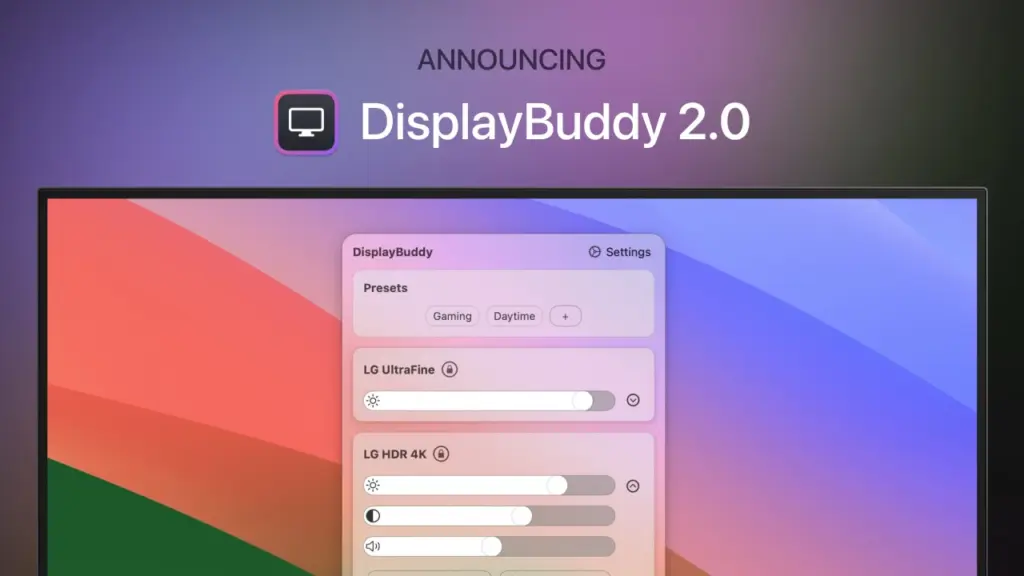
DisplayBuddy uses a protocol called DDC/CI. This stands for Display Data Channel / Command Interface. It lets your Mac send commands straight to your monitor’s hardware over the same cable that carries the picture. HDMI, DisplayPort, or USB-C all work. When you move the brightness slider in DisplayBuddy, you are not adding a dark filter on top of your screen. You are changing the real backlight of the monitor. This matters because it keeps your colors accurate and it actually saves power, unlike software dimming tricks.
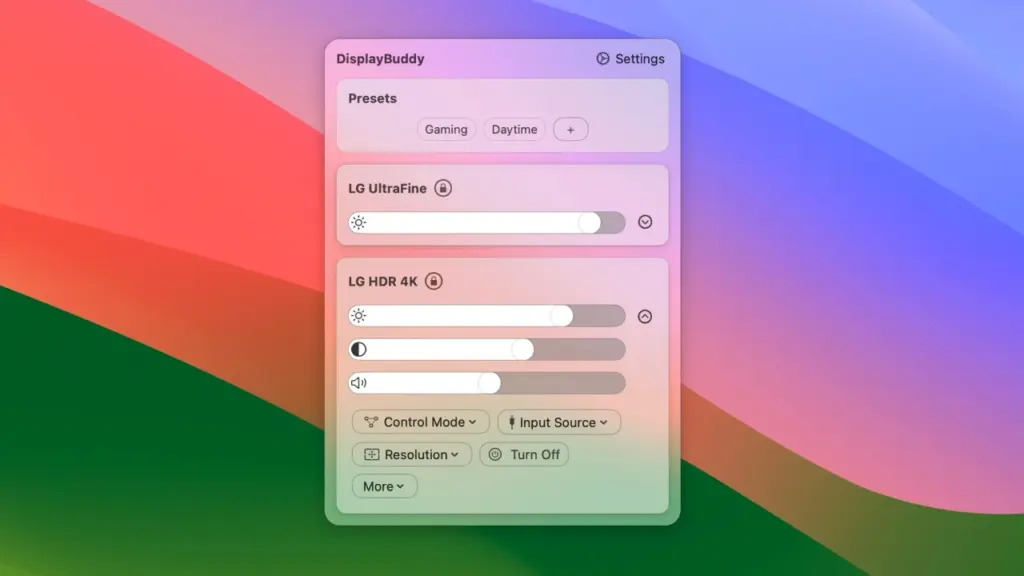
The app sits quietly in your Mac menu bar. Click the icon and you get sliders for brightness, contrast, and volume for every connected display. If your monitor has speakers, you can control that volume too. You can also switch inputs, so if your monitor is shared between your Mac and another device, you do not need to touch the monitor at all.
Presets Make It Useful Every Day
Most monitor apps stop at a brightness slider. DisplayBuddy goes further with Presets. A preset saves your full display setup, brightness, contrast, volume, and even input source, for every connected monitor at once. You can create one for daytime work, one for evening use, and one for watching movies. Switching between them takes one click. You can also trigger a preset with Siri or an Apple Shortcut, so your whole desk setup changes with one voice command.
If you run more than one monitor, the Sync feature is worth knowing about. It lets one display follow the brightness of another. A common setup is syncing your external monitor to your MacBook’s built-in screen, so both adjust together as the room gets darker.
Works With Monitors That Usually Get Ignored
Most brightness apps only work with standard DDC/CI monitors. DisplayBuddy also supports Samsung Smart Monitors (the M5, M7, M8 series and the ViewFinity S9) and LG webOS displays. These monitors do not use DDC/CI at all. DisplayBuddy connects to them over Wi-Fi instead, and gives you real control, including power and input switching. This is a feature most competing apps simply do not have.
DisplayBuddy also works on Apple Silicon Macs, from the M1 through the newer M-series chips, and on Intel Macs. There is one known limit worth mentioning. On some M1 Macs, DDC does not work over the HDMI port because of a chip-level issue. If this affects you, connecting your monitor through Thunderbolt or USB-C solves it.
Features of DisplayBuddy for Mac
- Real hardware brightness, contrast, and volume control using DDC/CI
- Menu bar access to every connected external display
- Input source switching between HDMI, DisplayPort, and USB-C
- Presets that save and restore a full multi-monitor setup in one click
- Sync feature to link brightness across displays
- Support for Samsung Smart Monitors and LG webOS over Wi-Fi
- Keyboard shortcut support, so your Mac’s brightness keys work on external monitors
- Siri and Apple Shortcuts integration
- macOS widgets for quick access without opening the app
- Works with Dell, LG, Samsung, BenQ, Acer, ASUS, HP, and most other major monitor brands
Technical Details:
- Software Name: DisplayBuddy
- Software File Name: DisplayBuddy 3.9.1.dmg
- Version: 3.9.1
- File Size: 15 MB
- File Extension: DMG
- License Type: Premium
- Developer: Displaybuddy.app
System Requirements
- Operating System: macOS 10.13 High Sierra or later
- Processor: Apple Silicon (M1, M2, M3, M4, M5) or Intel Core 64-bit
- RAM: 8 GB minimum, 16 GB recommended
- Storage: 500 MB free disk space
Best Alternatives to DisplayBuddy for Mac
DisplayBuddy is built for users who want presets, sync, and support for smart monitors on top of basic brightness control. If your needs are simpler, a few other Mac apps are worth knowing about.
MonitorControl is a free, open-source app that covers the basics well. It handles DDC/CI brightness, contrast, and volume control without cost. It does not offer presets, smart monitor Wi-Fi support, or dedicated developer support, and updates depend on volunteer contributors.
Lunar focuses on adaptive brightness that adjusts automatically based on ambient light and time of day. It suits users who want a hands-off, automatic approach rather than manual presets.
BetterDisplay leans more toward resolution and display management, including virtual displays and scaling, alongside basic brightness control. It fits users who need deeper display customization beyond brightness and volume.
Each of these tools solves the same core problem in a different way. DisplayBuddy stands out for users who run multiple monitors, want saved presets for different times of day, or own a Samsung or LG smart monitor that other apps cannot reach.
DisplayBuddy 3.9.1for Mac Free Download
Click the button below to download DisplayBuddy for Mac latest full version setup free. It is a complete standalone installer for macOS with a single-click download link.