 AllMacWorld MAC Apps One Click Away
Download Power Menu 1.23 for Mac free latest full version standalone setup. Power Menu 2026 for MacOS is powerful Finder extension that adds customizable actions to the right-click context menu. Move files, convert images, run scripts, and much more.
Power Menu 2026 for Mac Review
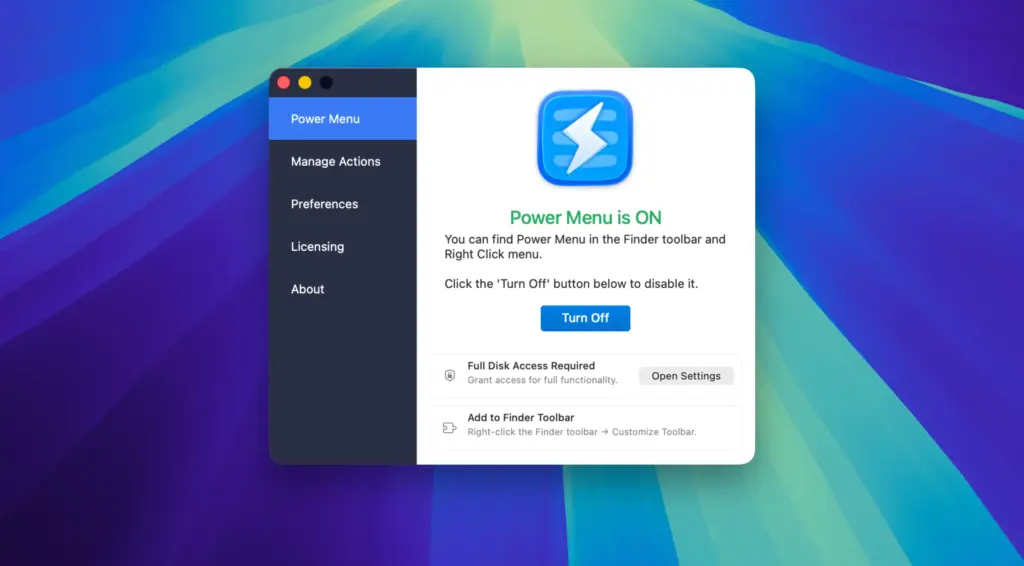
Power Menu for Mac is a Finder extension developed by FIPLAB. It adds extra options to the Finder right-click menu and toolbar. The main purpose is to make everyday file management easier and reduce the need to open different applications for simple tasks. You can also download Space Drop for MacOS
Finder already handles basic file operations, but some actions require extra steps. For example, creating a new HTML file, moving several documents to another folder, converting images, or opening Terminal at a specific location can interrupt your work. Power Menu brings many of these actions into one place. You can select a file or folder, right-click it, and choose the operation you need.
One of its most useful features is file management. You can move or copy files to frequently used folders without manually dragging them across Finder windows. This is helpful for people who regularly organize documents, images, downloads, and project files.
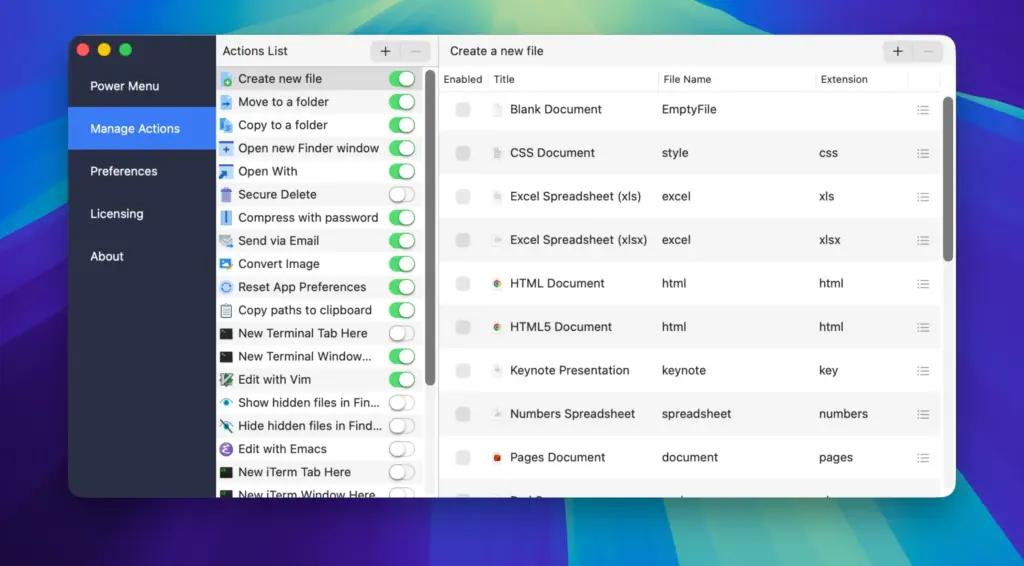
The application also makes creating new files easier. Finder does not offer a standard option for creating every type of file directly from its right-click menu. Power Menu solves this problem with ready-made templates. You can create files such as HTML, CSS, PHP, Python, Ruby, XML, and other supported formats inside your selected folder.
Image handling is another useful part of the application. Power Menu includes options for converting and resizing images. This can save time when preparing images for websites, documents, or other projects. Instead of opening an image editor for every small change, you can use the available Finder actions.
The application also includes PDF merging and batch renaming tools. These options are useful when working with multiple documents or large collections of files. You can combine PDF documents and organize filenames without going through several separate steps.
Power Menu is also useful for developers. It provides options to open Terminal at a selected folder location. You can also create custom actions using shell scripts and AppleScript. This means you can add your own commands to Finder and use them whenever needed.
For example, you can create a custom action to open selected files in Visual Studio Code or copy multiple file paths to the clipboard. These actions are particularly useful for people who work with project folders and frequently use command-line tools.
The custom script feature gives Power Menu more flexibility than a basic file management application. However, you need some scripting knowledge to use it properly. You should also test scripts before adding them to the application, especially if they modify or delete files.
Power Menu has some limitations. It does not automatically monitor folders or run scheduled tasks. You must select a file or folder and manually run the required action. Users looking for automatic file organization may find other applications more suitable.
Power Menu also requires certain macOS permissions to work correctly. These include Accessibility and Automation permissions, along with enabling its Finder extension. If its options do not appear in Finder, checking these settings is a good place to start.
Overall, Power Menu is a useful utility for people who spend most of their working time in Finder. Its built-in actions are convenient, while custom scripts make it more flexible. It is not a complete automation platform, but it can make everyday file operations quicker and easier
Features of Power Menu for Mac
- Fe Move Files: Move selected files directly to frequently used folders from Finder.
- Copy Files: Create copies of files in other folders without manually dragging them.
- Create New Files: Create new documents using available templates for formats such as HTML, CSS, PHP, Python, Ruby, and XML.
- Image Conversion: Convert images between supported formats directly from Finder.
- Image Resizing: Resize images using available size and percentage options.
- Merge PDFs: Combine multiple PDF documents into a single file.
- Batch Rename: Rename multiple files using prefixes, suffixes, replacement text, counters, and dates.
- Copy File Paths: Copy the complete paths of selected files or folders to the clipboard.
- Open Terminal: Launch Terminal at the location of a selected folder.
- Open in iTerm: Access supported folders through the iTerm application.
- Show Hidden Files: Display hidden files and folders in Finder.
- Hide Hidden Files: Hide hidden items when they are no longer needed.
- Secure Delete: Permanently remove selected files using the available deletion action. This should not be treated as guaranteed secure erasure on modern SSDs.
- Password-Protected ZIP Files: Create protected ZIP archives using AES-256 encryption.
- Custom Shell Scripts: Add your own commands and run them directly from Finder.
- AppleScript Support: Create additional actions using AppleScript.
- Finder Toolbar Integration: Access Power Menu actions from the Finder toolbar.
- Customizable Actions: Enable, disable, and rearrange actions according to your workflow.
- Multiple File Selection: Run supported actions on several selected files at onceatures of Power Menu for Mac
Technical Details:
- Software Name: Power Menu MacOS
- Software File Name: Power Menu v1.23.dmg
- Version: 1.23
- File Size: 13 MB
- File Extension: DMG
- License Type: Premium
- Developer: FIPLAB Ldt
System Requirements
- Operating System: macOS 10.10 or later
- Processor: Apple Silicon (M1, M2, M3, M4, M5) or Intel Core 64-bit
- RAM: 4 GB minimum, 8 GB recommended
- Storage: 200 MB free disk space
Best Alternatives to Power Menu for Mac
Hazel is a file management application that automatically organizes files and folders using rules. You can create rules to move downloaded files, organize documents, rename files, and manage folders based on specific conditions. Unlike Power Menu, Hazel can monitor folders and perform actions automatically. It is a better choice for users who want to reduce manual file management.
Keyboard Maestro helps automate repetitive tasks on Mac. You can create shortcuts and macros that perform multiple actions. It supports application control, keyboard shortcuts, scripts, and other automation features. It is more suitable for users who want to automate complete workflows rather than only add file operations to Finder.
Apple Shortcuts is a built-in automation application available on modern versions of macOS. It allows users to connect different actions and create workflows without writing code. You can create shortcuts for opening applications, processing files, and performing supported tasks.
Automator is Apple’s workflow creation tool. It allows users to combine different actions to perform repetitive tasks. You can create workflows for renaming files, processing images, handling documents, and performing other supported operations. It is useful for people who want to create custom workflows using Apple’s built-in tools.
Power Menu 2026 for Mac Free Download
Click the button below to download Power Menu for Mac latest full version setup free. It is a complete standalone installer for macOS with a single-click download link.


